


Are you a professional blogger with a medium or big site, a developer who needs cutting-edge WordPress features, or just someone who needs a well-performing host? If you are one of these people, you will love today’s review. I’m going to be testing one of the most famous WordPress hosting on the market- SiteGround WordPress Hosting!
SiteGround WordPress Hosting has become so popular that some of the best WordPress-related organizations have recommended it: Yoast, WoooComerce, and WordPress itself. They take pride in their recommendations, so much that they have it written on their homepage, right below their motto.
To be honest, I have already used some of SiteGround’s services, so I can say that my expectations are high. SiteGround WordPress Hosting claims that they’re the perfect choice if you’re a company using WordPress for your website or an organization that needs to give access to several users. Their WordPress expertise is always available, and they offer quick pick-up and resolution. They even claim that they have top-rated customer satisfaction.
It sounds like SiteGorund WordPress hosting is the perfect hosting for anyone in this business, but is that 100% true? Are all these recommendations fairly earned, or just a way, a way to bring in more buyers? Is SiteGround WordPress hosting one of the best in this industry? So many questions in my head that need to be answered right now. It’s time to put them to the test and find out if they’ve truly earned their crown!

SiteGround

Getting Started with SiteGround WordPress Hosting Plans
Let’s get down to business right away and see what plans SiteGround WordPress hosting has to offer. For a certain amount of money, you can choose one of the three available plans: StartUp, GrowBig, and Go, Geek.
The most affordable plan is the StartUp plan. This plan is an excellent option for a single WordPress site because it offers only one website. It also has 10GB of web space and 10,000 visits monthly. For the same price, you can get unmetered traffic, free WP installation, free WP Migrator, WordPress auto-updates, free SSL, daily backup, free CDN, free email, enhanced security, enabled eCommerce, WP-CLI and SSH, unlimited databases, and out of the box caching.
The GrowBig Plan offers all of the mentioned above, but it offers an unlimited number of websites and more storage, 20GB web space to be precise. On top of that, it has on-demand backup copies, 30% faster PHP and Staging that will allow you to create a copy of your live site on a separate staging environment with a single click.
Now let’s talk about the most pricy plan, the one that’s more than two times more expensive than the StartUp plan. The GoGeek plan would be ideal for more significant WordPress users that need more storage because this plan offers 40 GB storage. It also allows you to host an unlimited number of websites. The main perks that you can get from this plan are their on-demand backup copies, 30% faster PHP, staging+ Git, white-label clients that will allow you to register your clients as users in your account, and the highest tier of resources that will allow you to use more server resources. Another perk is that you will get priority support, assigning your tickets or initiating a chat with priority to hosting’s most experienced support agents.
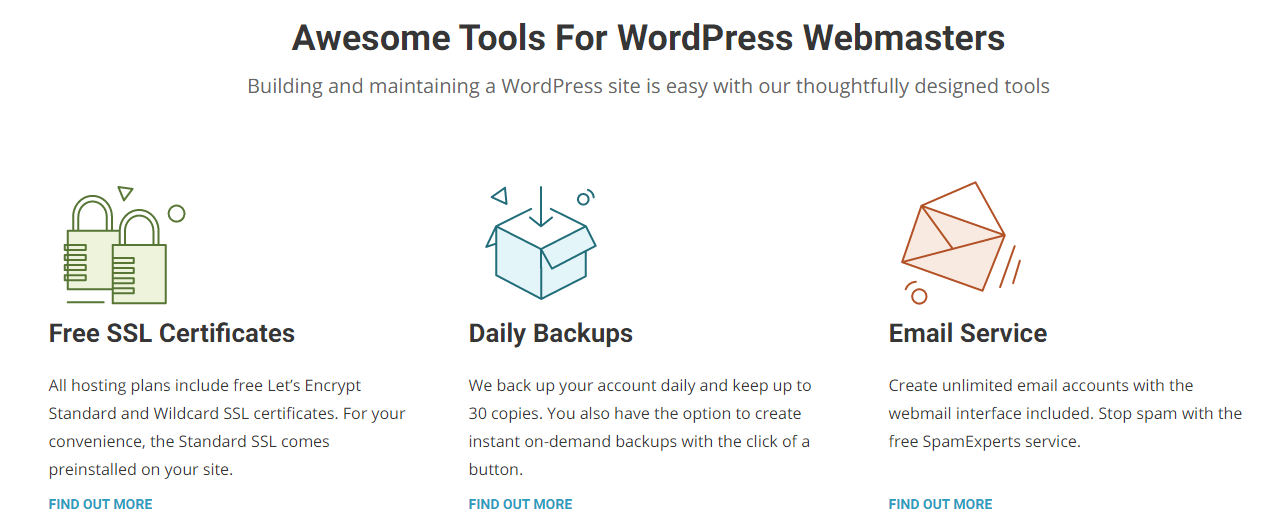
For those wondering what WordPress features you can get from these plans, we will discuss that too. All three plans have WordPress free install so that you can install WordPress with a few clicks directly from the SiteGround Customer area. The Free automated WordPress Transfer will allow you to transfer unlimited WordPress sites to SiteGround.They include WordPress advanced security, which will closely monitor your WordPress application’s overall security status and apply strict security audit procedures.
All the accounts have a pre-installed WP-CLI interface that will help you update WordPress, install themes, etc., from the command line. All three plans also offer an SG Optimizer WordPress plugin that provides maximum benefit for the NGINX-base dynamic cache option plus all other optimization options a WordPress website might need.
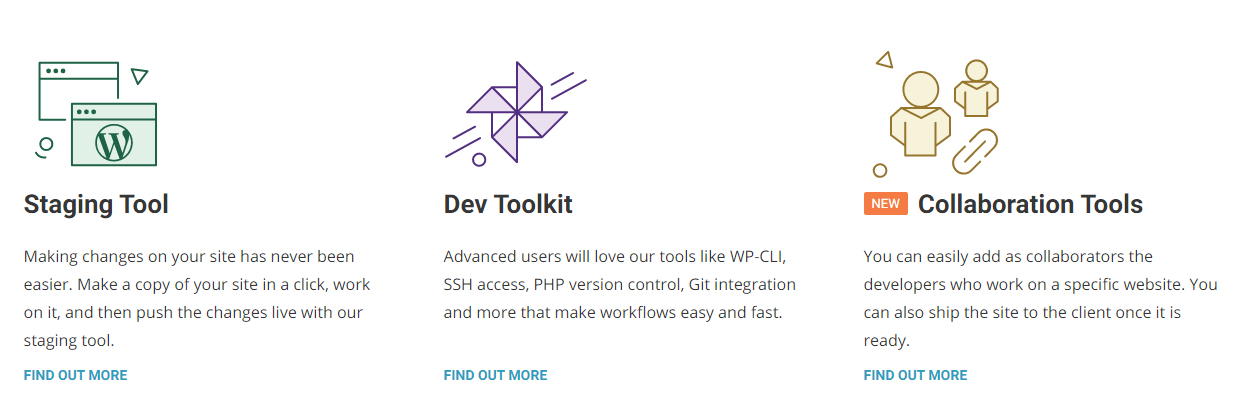
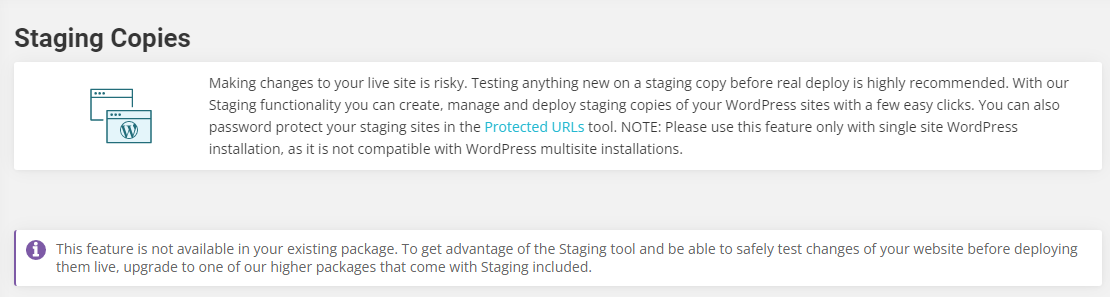
The one-click WordPress staging that allows you to create a copy of your live website on a separate staging environment is available with GrowBig and GoGeek. This means that you’ll not be able to use this option if you purchase StartUp.
Another thing that GoGeek has to offer that the others don’t is the SG-Git WordPress Repo creation, which allows you to create a Git repository of your WordPress installation, which you can later access.
If you’re worried about security, you probably shouldn’t be because all three plans offer great security solutions. All three plans include power redundancy, hardware redundancy, LXC-based stability, unique account isolation, fastest server monitoring, anti-hack systems, proactive updates and patches, spam protection, an automated daily backup. It’s safe to say that you’ll be pretty safe!
What the StartUp doesn’t include, and the other two do, is the advanced om-demand backup, which allows you to create up to 5 on-demand backups at a time.
Now, suppose you’re purchasing a plan to build an online shop. In that case, SiteGround’s WordPress hosting plans offer free and easy installation of a shopping cart of your choice and a free and automated SSL installation of certificates.
I can freely say that the hosting plans are an excellent option for agencies and designers because they offer the option Ship site to clients, which allows you to transfer a website from your account to a different SiteGround client and make recommendations about the hosting plan and additional services. Another great feature is adding collaborators to your site who get their SiteGround Accounts and individual login to the Site tools of your site and can build or maintain it for you.
Enough with the talk; it’s time to take action. It’s time to take out the credit card and go virtually shopping. As you already know, I will purchase the cheapest plan since I will use it for research purposes only.
Although it’s essential, the StartUp plan will reveal everything there is to know about SiteGround WordPress hosting. So let’s do this!
First, you need to click on Get Started and choose the plan. The next step is to choose a domain. I’m going to check – I already have a domain, and I’m going to type in my domain name. If you don’t have your domain, you have an option to register a new one, but you need to be aware that a new domain will be charged extra money. The site will warn you if your new domain name is already taken, and it will offer a couple of other currently free names. You can easily choose from the given options.
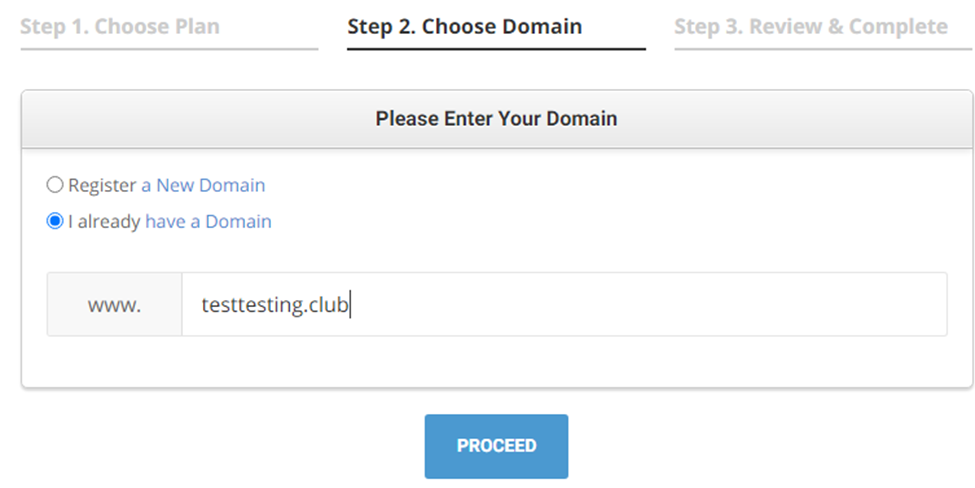
Once I clicked Proceed, in just a couple of seconds, I got to step 3, where you can review and complete your domain information. Here, I got a notification that my hosting account would be ready in just a few minutes. In step 3, you need to fill in all the information they need, especially those marked with a star. Step 3 is divided into four categories: Account information, Client Information, Payment Information, and Purchase Information.

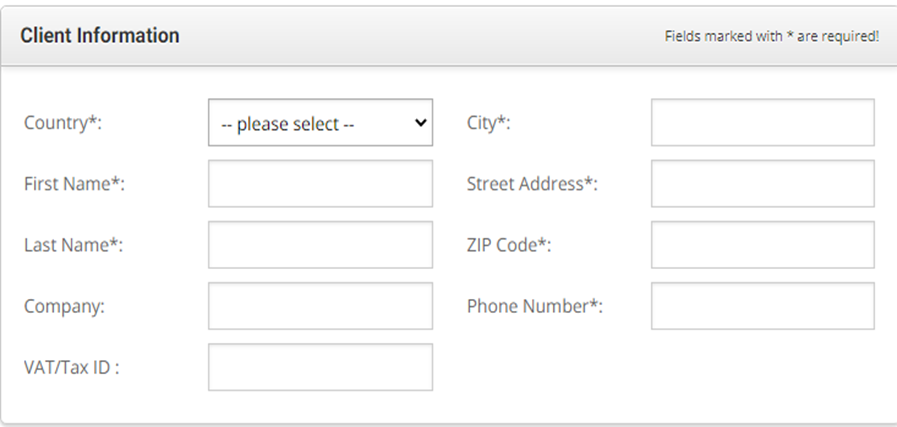
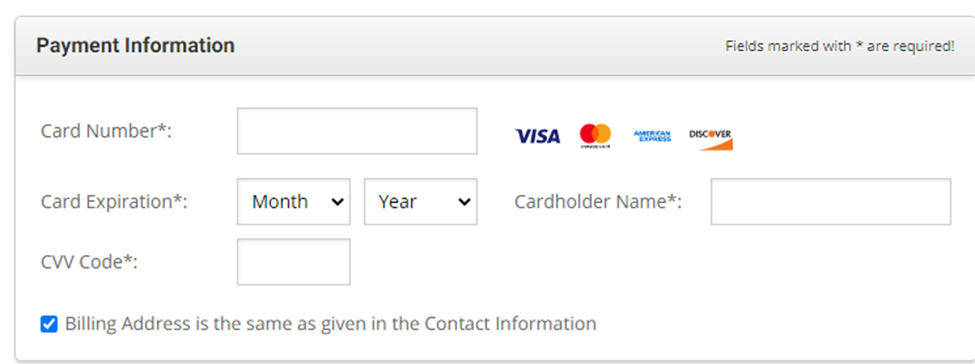
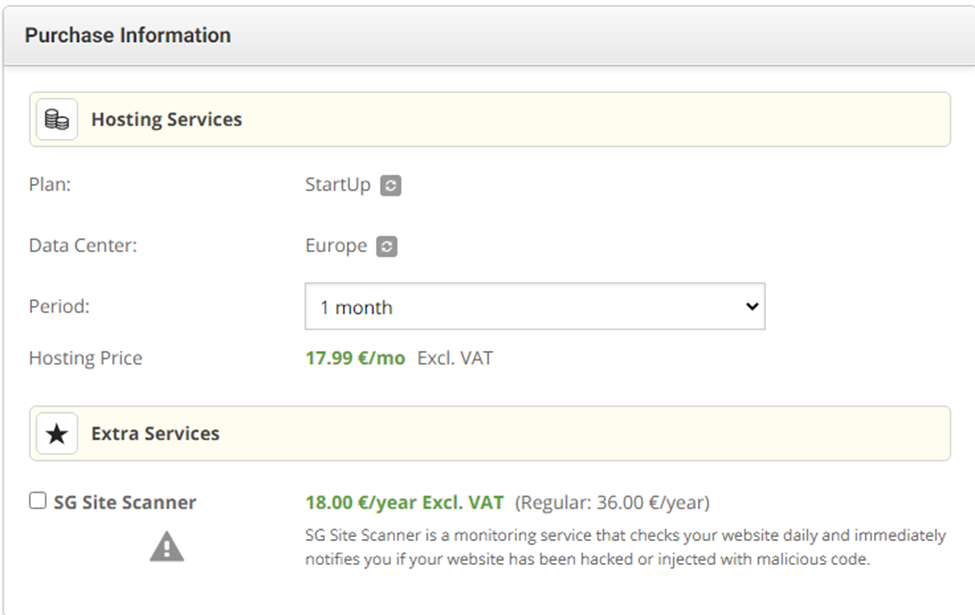
Once I finished filling in every information needed, I clicked on Confirm order and was all set. My order was processed, and it was time to set up my site.

Setting Up a SiteGround WordPress Hosting Plan
Once I got the message that I was all set, I clicked on the Setup site.
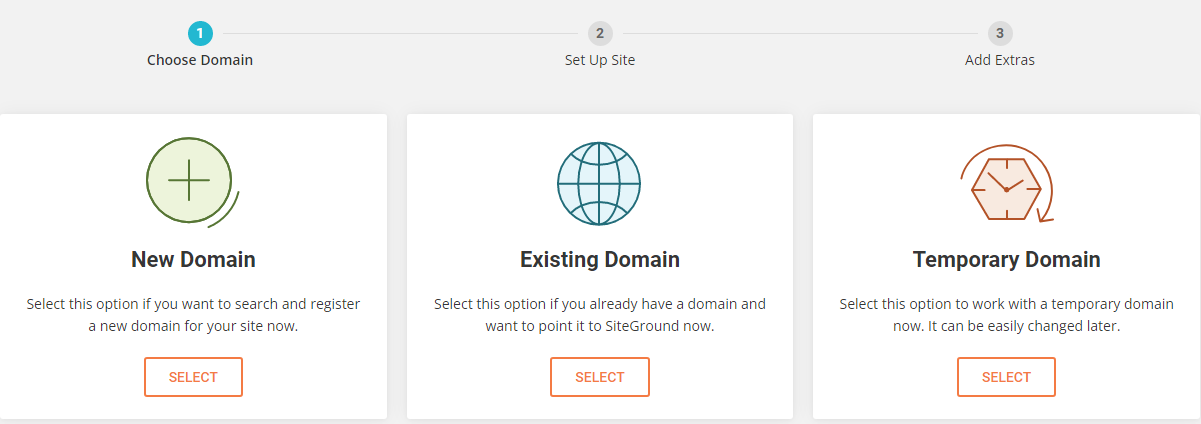
The first step towards creating my site was to choose a domain. I was offered to search and register a new domain for my site, use an existing domain, or work with a temporary domain. Since I already have a domain I use for my testing, I chose the Existing Domain button, clicked on Select, and then I had to type in my domain name. Finally, I clicked on Continue.

The next step was to set up a site. Here I got two options: to start a new website or migrate a website. I was also given the option to skip and create an empty site. I chose this option because I wanted to create my website from the inside and explore all available options.
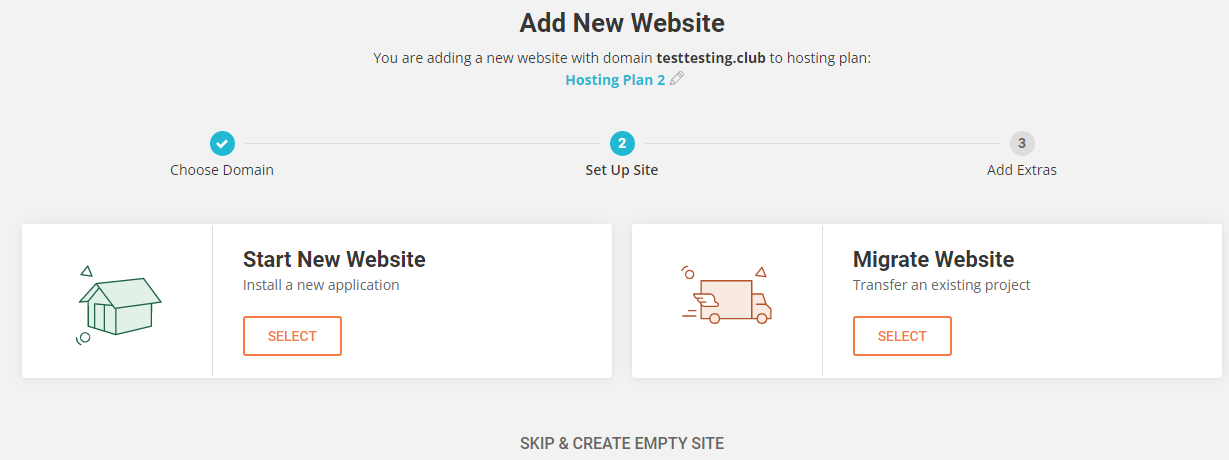
I clicked on Skip and Created an empty site. Then I got to step three, where I was offered to add extras to my plan. SiteGround was offering the SG Site Scanner, a monitoring service that checks your website daily and immediately notifies you if your website has been hacked or injected with malicious code.

Since I wasn’t planning to spend any more money, I passed their offer and clicked on Finish. And I was all set! My website has been created. It was time to check their tips on how to proceed to manage my website.
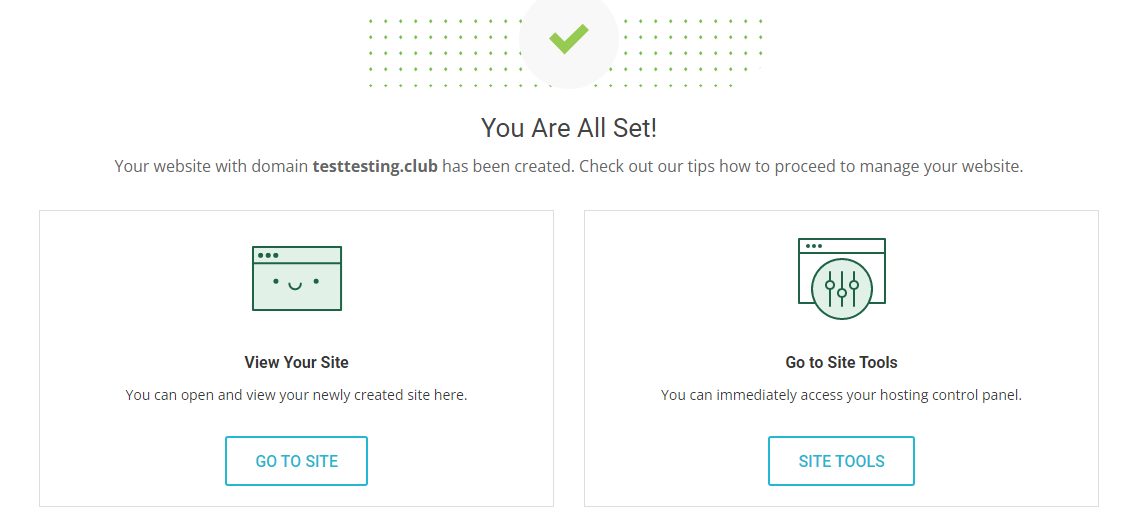
Let’s access my hosting control panel and see what we can find there. Click on Site tools.

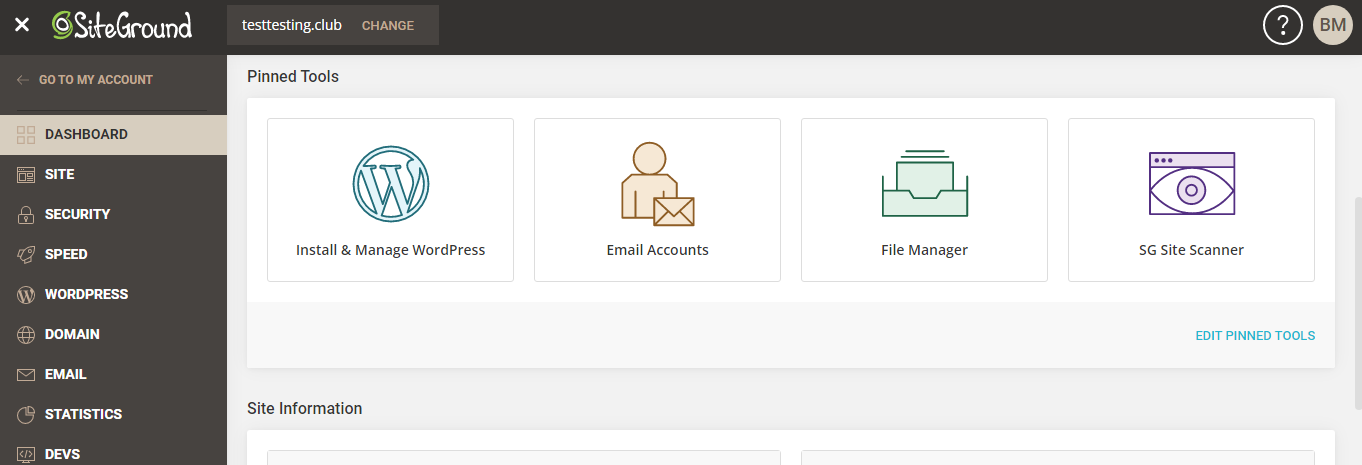
A couple of seconds later, I got to my hosting control panel. Let’s start with the Dashboard. There you have the pinned tools for easy access: Install&manage WordPress, Email accounts, File manager, and SG Site Scanner.
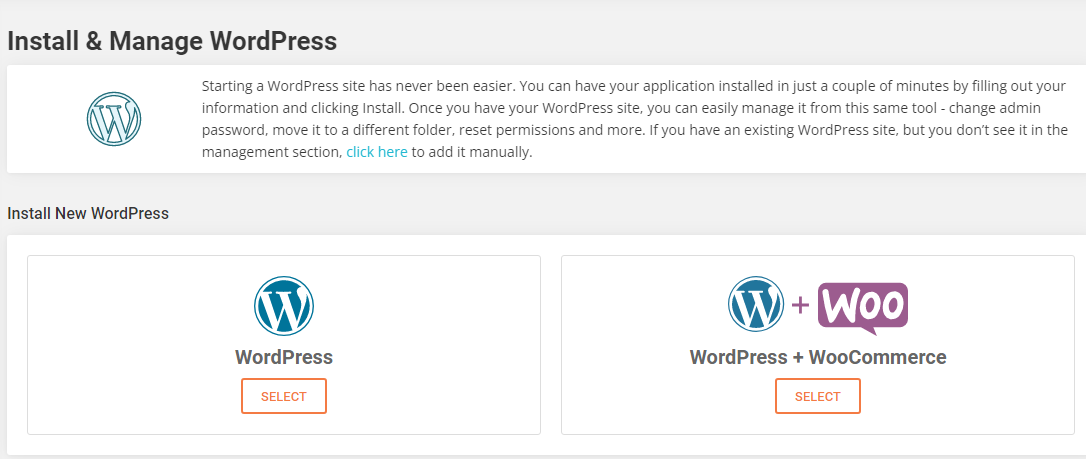
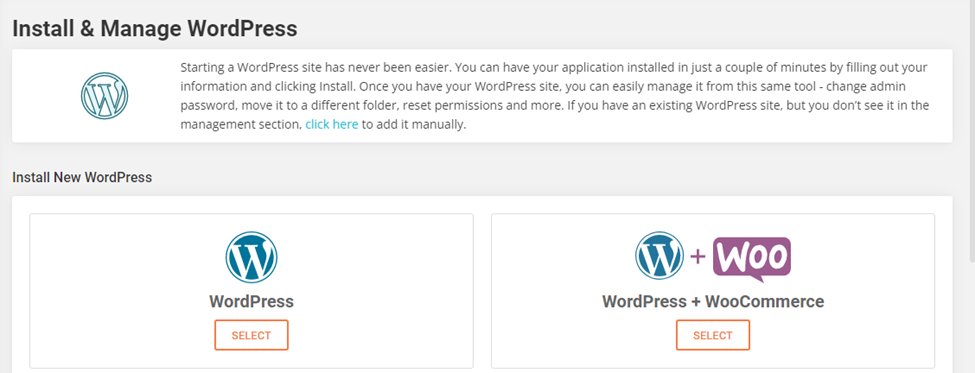
If you click on Install&Manage WordPress, you will get the opportunity to install WordPress with just one click. Another great thing is that you can also install WooCommerce too. One-click, that’s all it takes.
Another thing that you can see on the Dashboard is Site information. You can check out the disk usage, Inodes, Site IP, and name servers.

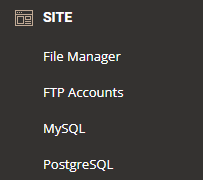
Now let’s explore the Site sections. As you can see from the image below, it’s divided into four sections: File Manager, FTP accounts, MySQL, and PostgreSQL.
The first thing I’m going to explore is the File manager.
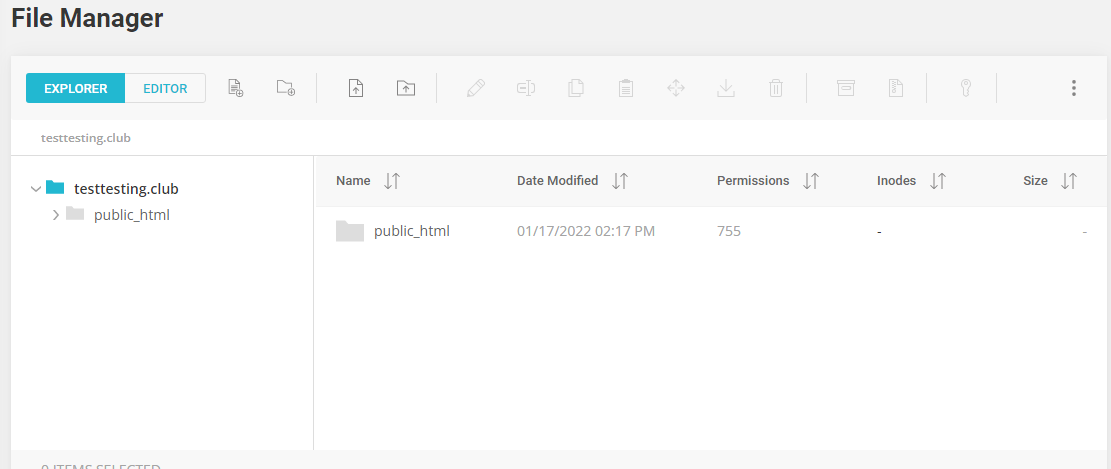
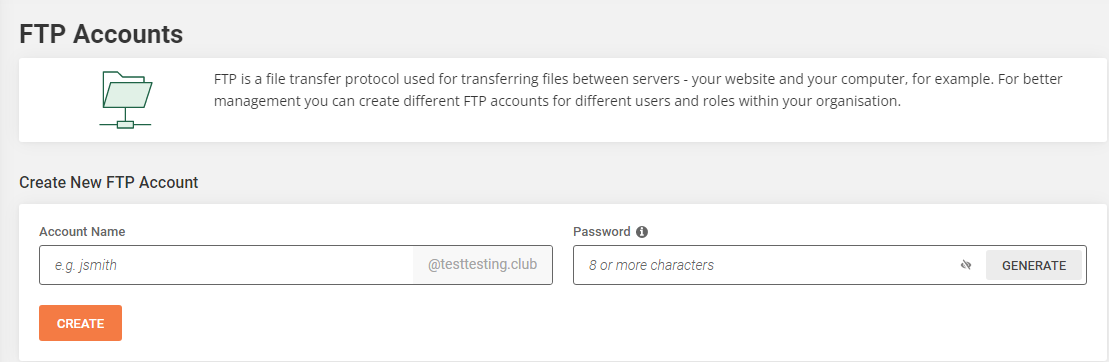
In this section, you can add new files, upload files, upload, edit, etc. You also have an editor where you can edit your files. Next, we have the FTP accounts. FTP is a file transfer protocol used for transferring files between servers. To manage your site better, you can create different FTP accounts for different users and roles within your organization.
The MySQL Manager is a database management system based on Structured Query Language. It is the most popular language for adding, accessing, and managing content in a database. My SQL is reliable for its quick processing and ease of use.
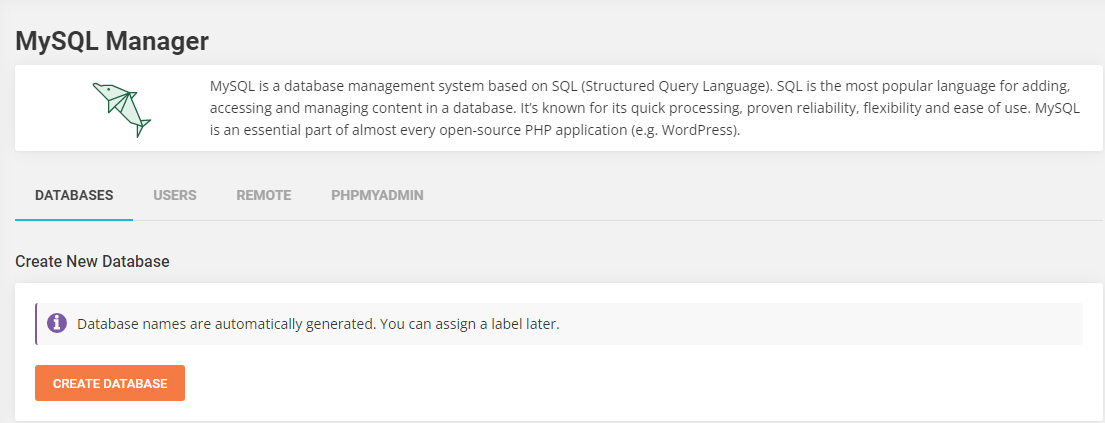
Here, you can create new databases and new users, add a remote access host, and access phpMyadmin. Another feature in this section is the PostgreSQL Manager. This database system uses and extends the SQL language combined with many features that safely store and scale the most complicated data workloads.

In the Security section, you have backups, SSL manager, HTTPS enforce, Protected URLs, blocked IPs, and SG site scanner.

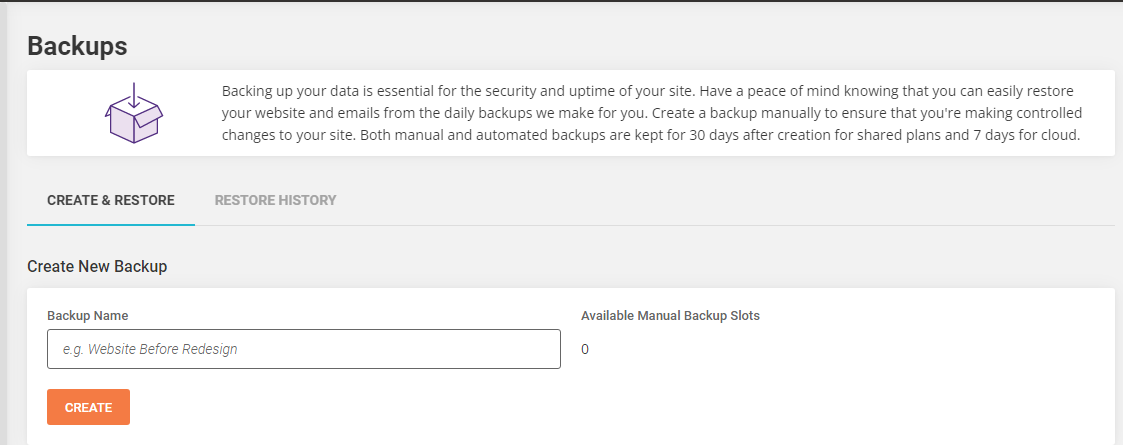
Backups will help quickly restore your website and emails from the daily backups. You can create a backup manually or automated. All backups are kept for 30 days.
The SSL certificate will keep your website secure. It will encrypt all traffic through your website and ensure all information remains protected. This manager will also help you install different SSL certificates easily, import existing ones, and manage your certificates.
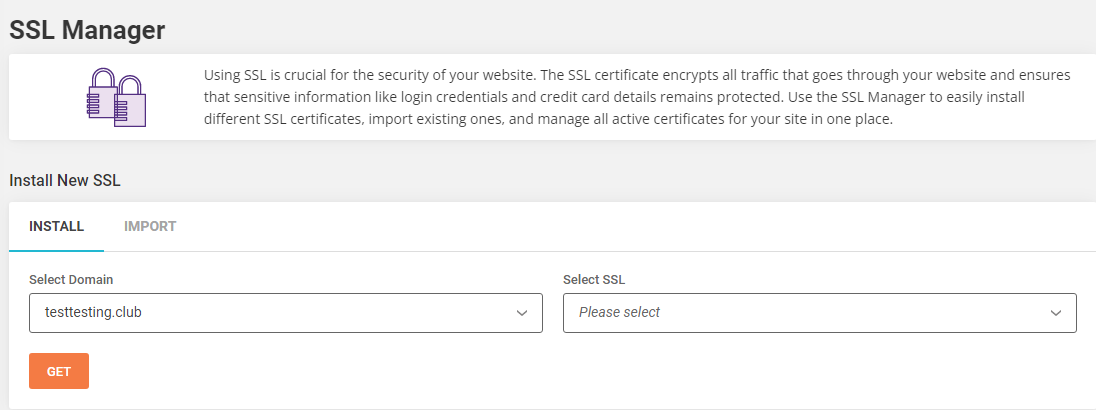
The HTTPS Enforce is a tool that will enforce your website to work over a secure HTTPS connection.

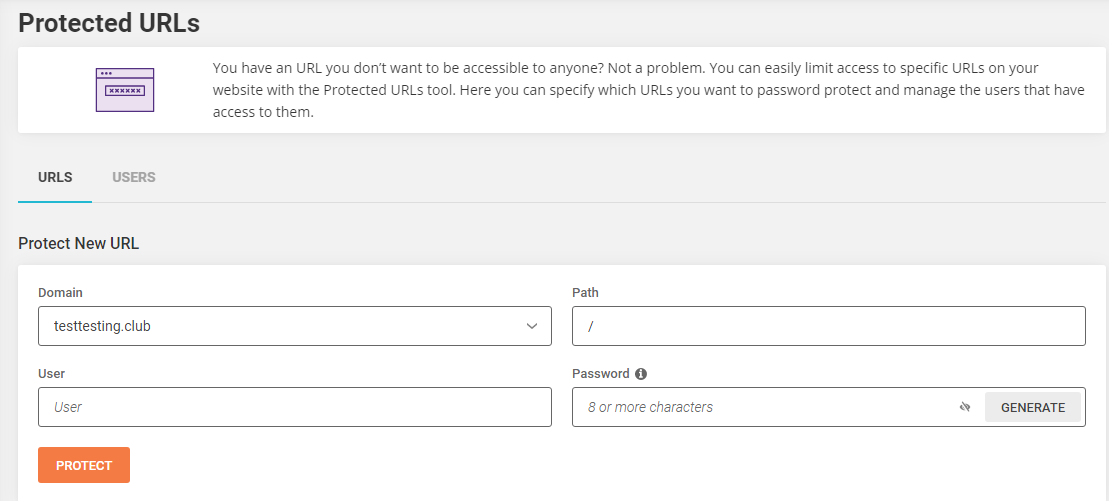
The Protected URLs feature will help you limit access to specific URLs on your website. You can protect your URLs with passwords and manage the users that have access to them.
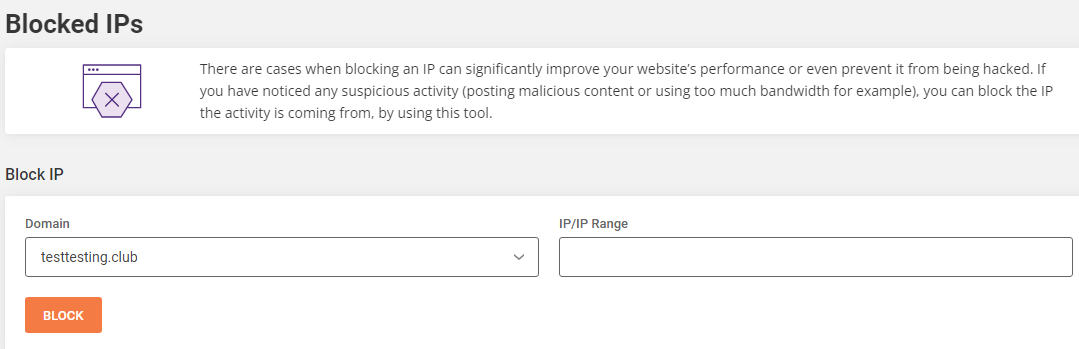
Blocking an IP can sometimes improve your website’s performance and prevent it from being hacked. If you notice any suspicious activity, you can easily block the IP by using this tool.
We already discussed the SG Site Scanner, building the account. It causes extra money, but it’s a great tool that can scan your website daily and detect malware.
Now let’s move on to the Speed section. As you can see, there are two features offered there: Caching and Cloudflare.

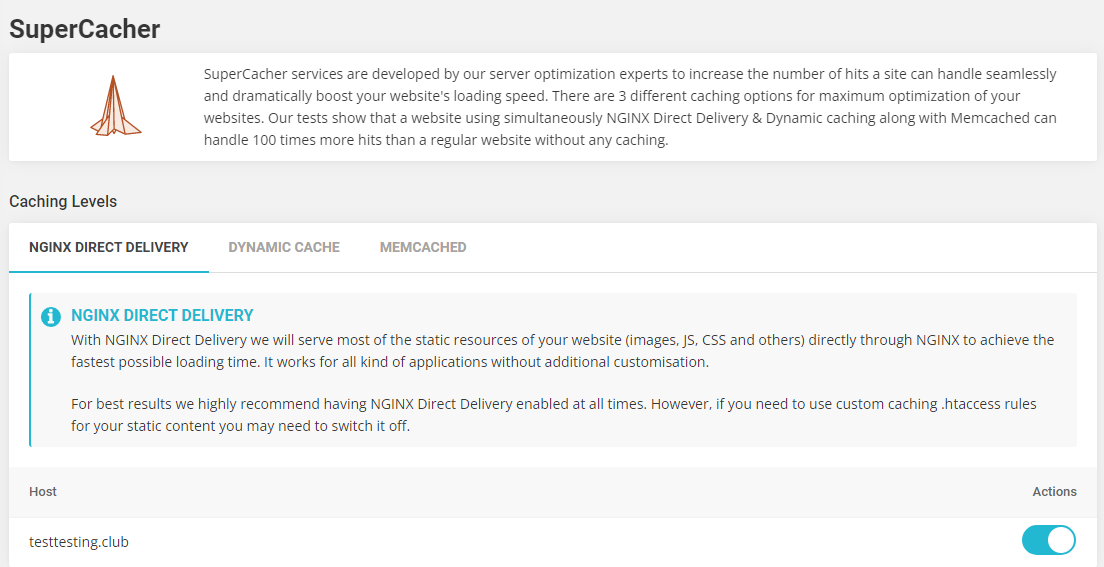
SiteGround has developed SuperCacher services that can increase the number of hits a site can handle seamlessly and dramatically boost your website’s loading speed. You have three available caching options: NGINX direct delivery, Dynamic cache, and MEMCACHED.
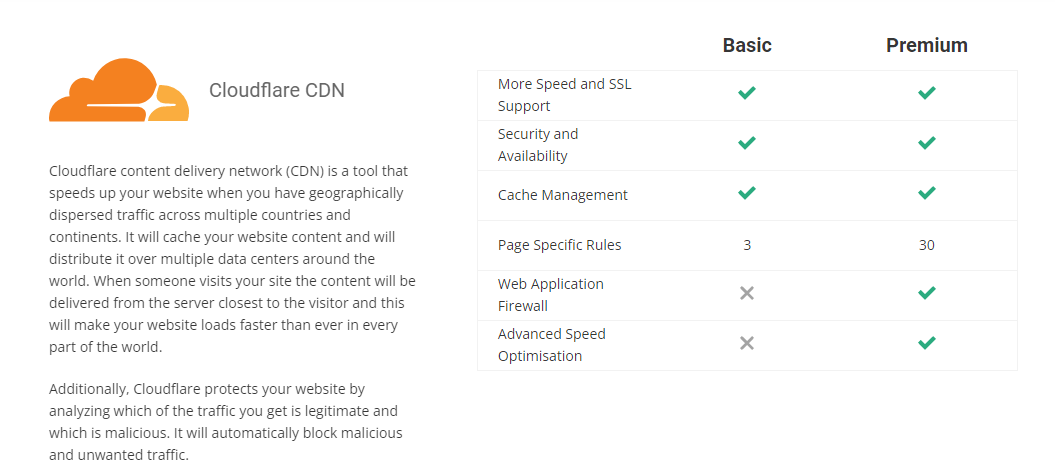
You’ll also get access to the Cloudflare CDN, which is a tool that can speed up your website. It will also cache your website content and distribute it over multiple data centers worldwide.
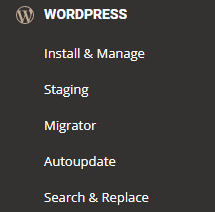
Finally, I got to the section that I was excited about the most: WordPress. There are five features offered here: Install&manage, Staging, Migration, Auto Updates, and Search & Replace.
When I clicked on Install&Manage, I saw the same option available in the Dashboard. I’m talking about installing WordPress with just a couple of clicks. If you didn’t use the Dashboard for this option, you could easily install WordPress from here, too.
The Staging options will test anything new on a staging copy before deployment, so this step is highly recommended. This option will allow you to create, manage and deploy staging copies of your WordPress sites with just a few easy clicks.
The Migrator will help you transfer WordPress sites in just a few clicks.
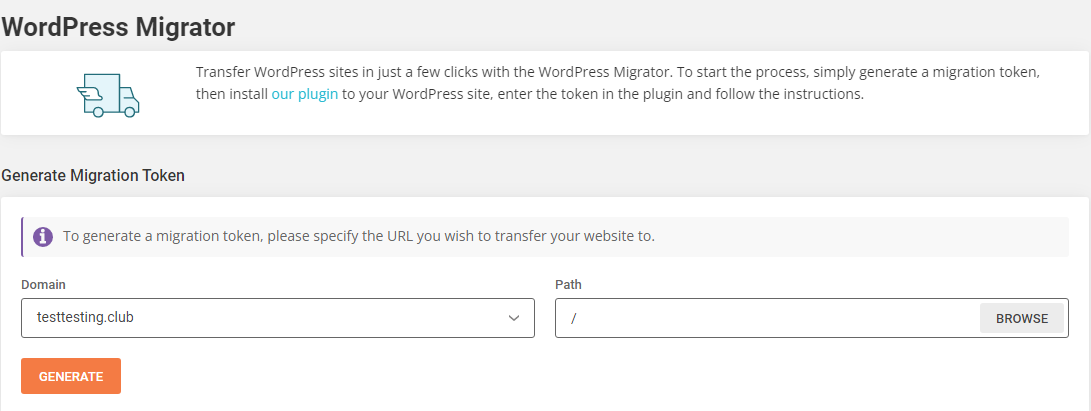
WordPress Autoupdates will ensure your website is secure and up-to-date. SiteGround will automatically update your WordPress installations hosted with them.

Use the Search & Replace tool to change strings in your WordPress site in bulk. You can use this tool to change domain names, change from HTTP to HTTPS, and much more.

The Domain section will help you add new parked domains, which are domains that can be used to reach your site; create subdomains to organize your site into different sections; redirect domains which will help you redirect a URL of a no longer existing page to a live one, and translate human-readable domain names into IP addresses.
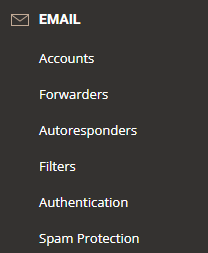
The Email section offers six features: Accounts, Forwarders, Autoresponders, Filters, Authentication, and Spam Protection.
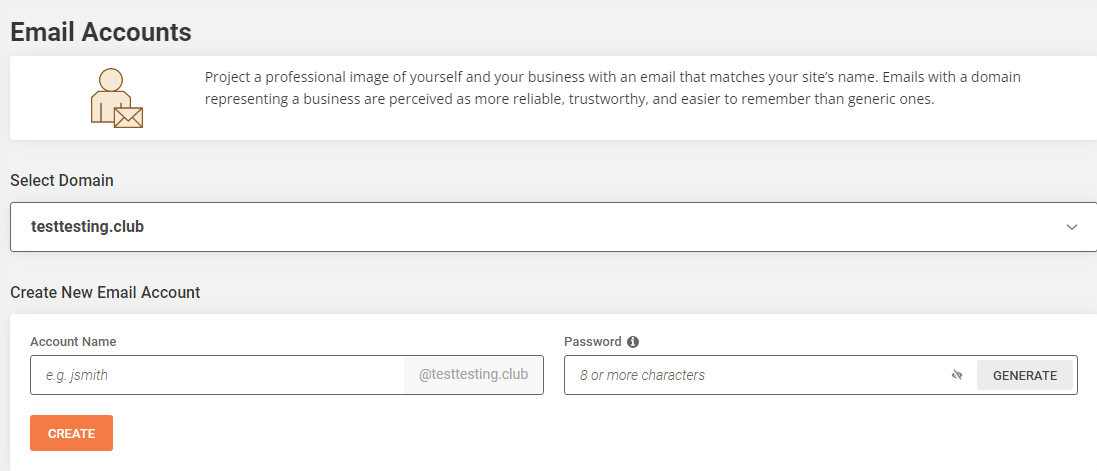
You can easily create a new email account that will match your site’s name. This will project a more professional image of you and your business.
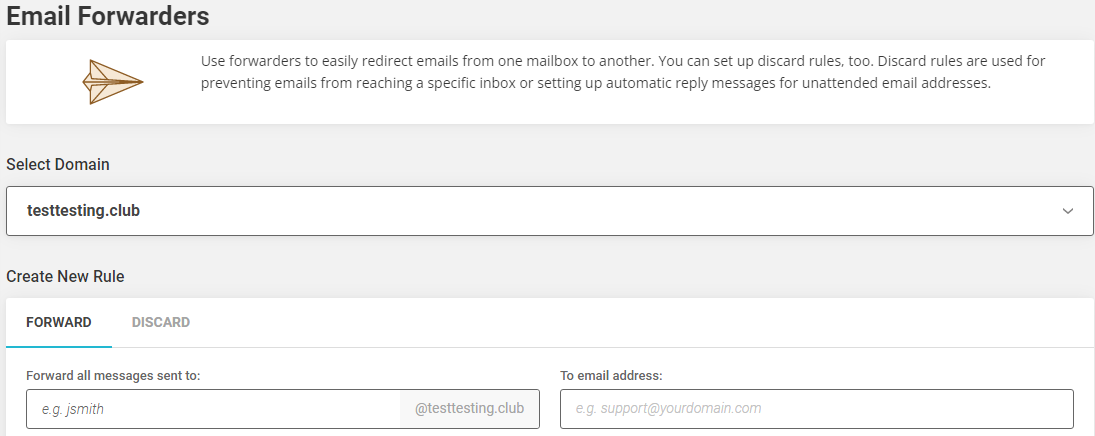
The Email forwarders will help you easily redirect emails from one mailbox to another. You’re also given the option to discard rules.
The Email Autoresponders will help you notify your senders that you’re unavailable or simply you need more time to get back to them. Autoresponders can be scheduled for a specific period. The Email Filters will enable you to quickly set up different rules for email processing on the domain level and user level. Email Authentication will enable you to set up rules that prevent email spoofing. SiteGround WordPress hosting also has Spam protection by SolarWinds Experts filters that will help you eliminate spam.

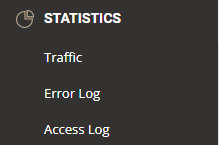
The statistics section will give you proper insight invaluable information about unique visitors, page view, visitors’ browsers, and preferred search engines. It will also demonstrate the most recent errors, which will help troubleshoot broken links, files, and other errors. The Access logs will help you see who has been visiting your website recently, and it’s a great tool to monitor suspicious activity.
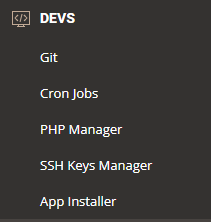
And finally, we arrived at the DEVS. Here you have Git, Cron Jobs, PHP Manager, SSH Keys Manager, and App installer.
The Git option will create a Git repository for your application. You can easily access, download and edit on multiple local branches. The Git tool can help you link your site with a local installation of Git in just a few clicks.
With the Cron Jobs tool, you will automate commands or scripts on your site. The downside of this option is that you need to understand Linux commands to use this tool correctly. The PHP manager tool will allow you to check the PHP version each of your applications is using and quickly change it to the latest version.
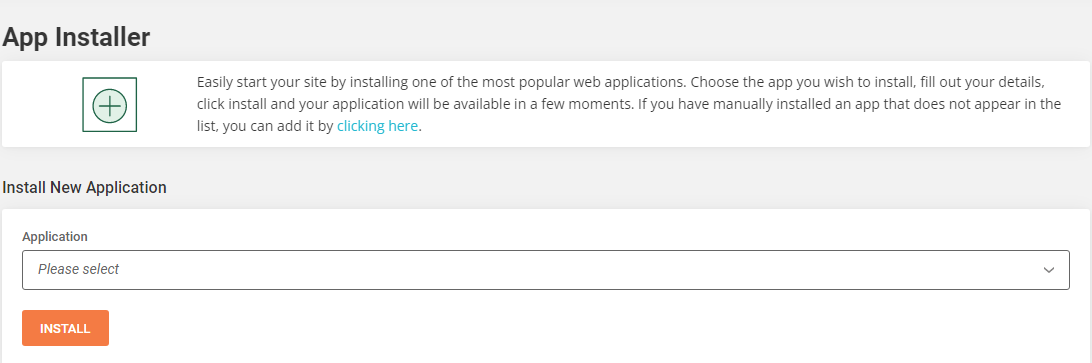
The SSH Keys Manager provides secure access over an encrypted connection to your site. You can easily manage your files and folders, modify permissions and change files directly on the server. The App Installer will help you easily install one of the most popular web applications. And with a couple of clicks, the app you want will be available in a few moments.
SiteGround
Performance, Speed, and Uptime
One of the most critical things in this business is speed. All SiteGround servers are highly optimized for speed which guarantees optimal performance.
Better yet, SiteGround WordPress has extraordinarily excellent uptime, being over 99.95%. It’s extraordinary since not many hosting providers can guarantee that your site will be available 100% of the time.
SiteGround features SSD, a storage medium faster than an HDD when it comes to performance. They also offer NGIX, SuperCacher, CDN, HTTP/2, and PH7. Keep in mind, these tools I mentioned make SiteGround offer outstanding performance.
Customer Support
SiteGround WordPress hosting offers a 24/7 support system via live chat, ticketing, and phone. They also have a very detailed knowledge base to find beneficial information regarding the services. Another thing I liked is their pre-recorded webinars that can help their customers understand all the features available. Their tutorials are also excellent and can help customers.
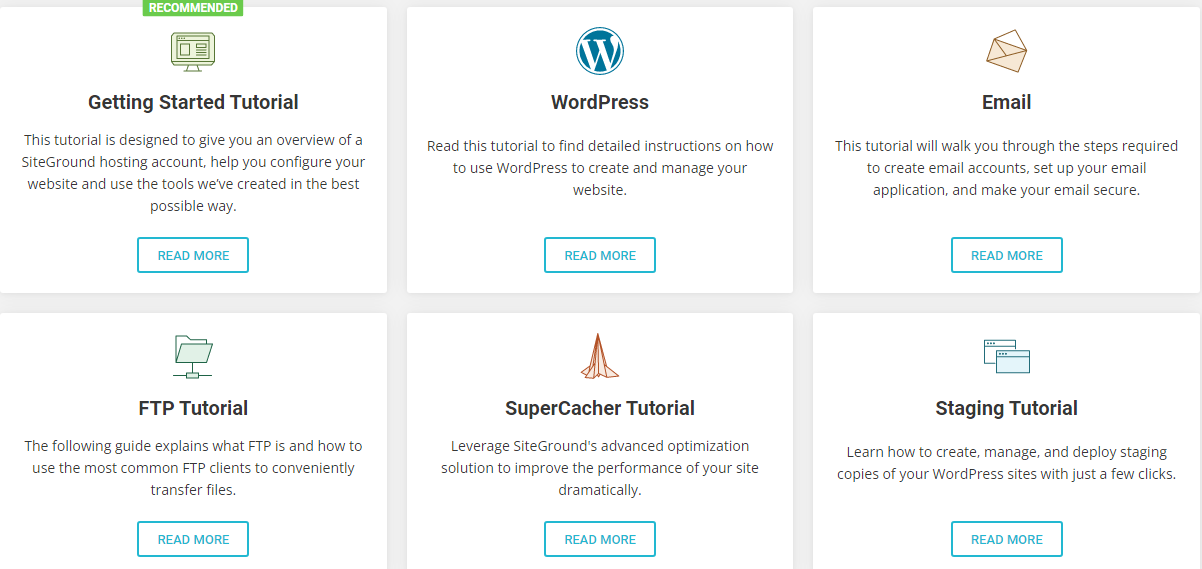
Their live chat support is also great, and their techs were very kind and helpful. If you enjoy more live interaction than typing, they also have a phone number, where you can call anytime you’re experiencing difficulties.
Security and Backups
SiteGround claims that security is their top priority. They’re a pretty secure hosting since they use the latest PHP 7 version. They also run Apache in a chrooted environment with Suexec, have sophisticated IDS/IPS systems to block malicious bots and attackers. The ModSecurity, installed on their shared servers, can protect the customers from the most common attacks.
As you can see, SiteGround is trying to protect its customers, and I appreciate that. Their system also allows you to create your backups and restore backups if things go wrong. You’ll be able to restore old versions of your site in just a few clicks. You will also get 30 backup copies of your site.
Specific Features of SiteGround WordPress Hosting
What makes SiteGround WordPress hosting better than the others?
- SSD drives for all its servers
- Latest PHP version
- Cloudflare CDN
- Simple WordPress installation
- Free WordPress site transfer
- Free Git Installation
- 24/7 support via live chat and ticketing
Pros and Cons of SiteGround WordPress Hosting
Pros:
- Easy to use
- Great uptime and performance
- Unlimited traffic
- Backups available
- Fantastic set of WordPress-specific features
- Highly reputable technology such s: SSDs, CDNs, and PHP 7
- Great support options
- Competitive pricing
Cons:
- Some service limitations
- Prices increase at renewal
Summary
Overall, SiteGround WordPress hosting is one of the best WordPress hosting providers. I need to emphasize that it’s not the cheapest hosting you can find, so you’re going to need a slightly bigger budget.
I liked that they’re oriented to offer their customers excellent security, speed, and uptime. It contains incredible WordPress-specific features and beneficial support options. Their knowledge base and tutorials are genuinely extraordinary and can come in handy. It’s especially great for people with a large project and needs some advanced features to help with daily upkeep.


